
hop earth controls
Hop.Earth Controls: Keyboard, Car Summon, and Mobile Touch
Verified Hop.Earth controls guide for desktop and mobile: keyboard input, car summon steps, touch layout, troubleshooting, and race prep.
Hop.Earth Controls: Keyboard, Car Summon, and Mobile Touch
Hop.Earth controls are the inputs you use to drive, look around, and call your car in the browser game at hop.earth. Desktop players generally use a keyboard and mouse, while mobile players use on-screen touch controls. Car summoning is an in-game action, not a code. This Hop Earth Wiki guide separates verified browser behavior from community-reported shortcuts, so you can test each input with confidence. Last reviewed: March 2025.
What are the Hop.Earth controls on desktop?
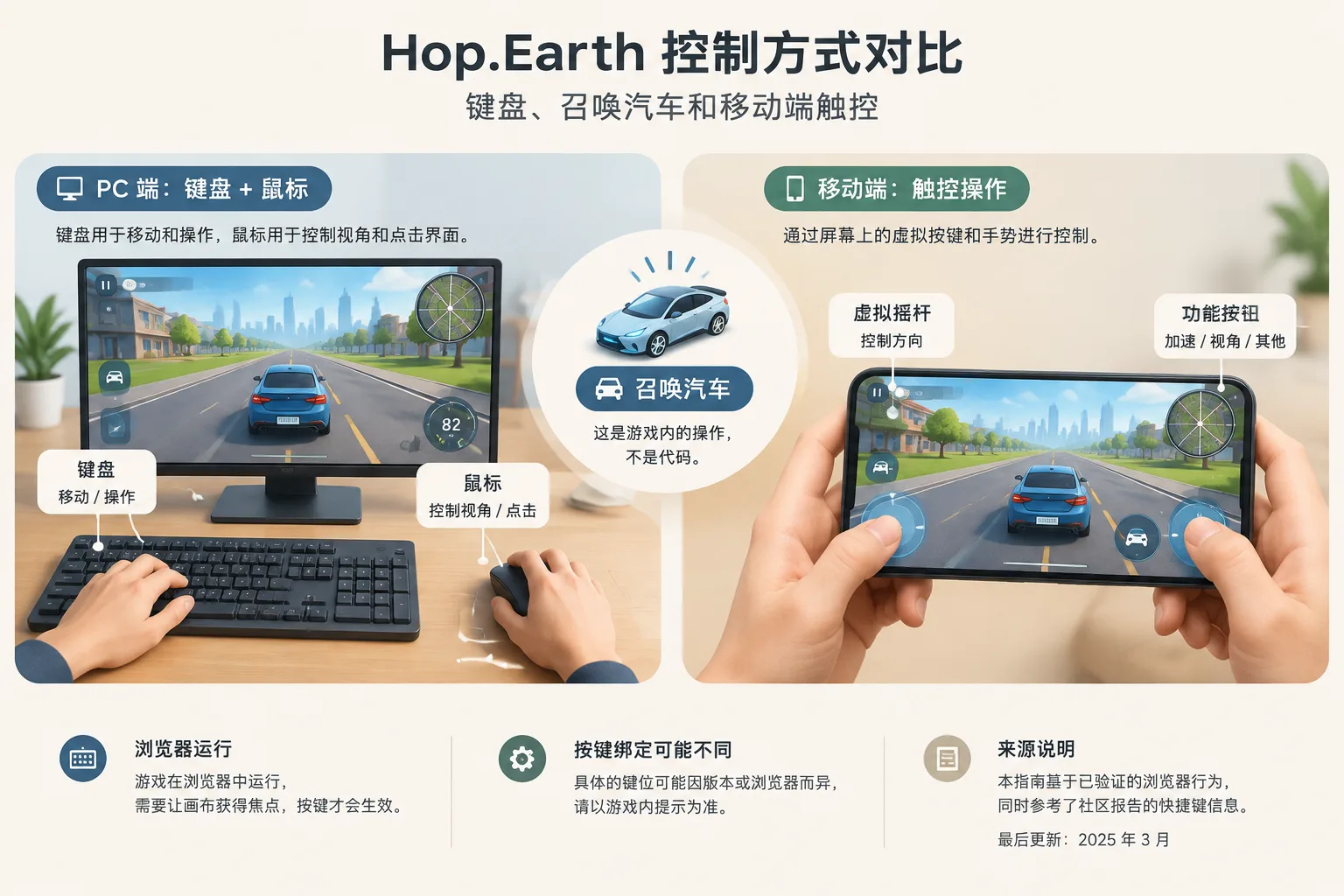
On desktop, Hop.Earth controls are keyboard-first, with the mouse used for camera and interface clicks. The game runs in a browser, so the canvas must have focus before key presses register. Exact bindings can vary by build, so check the on-screen control hint. If a key does nothing, click the game area once and try again.
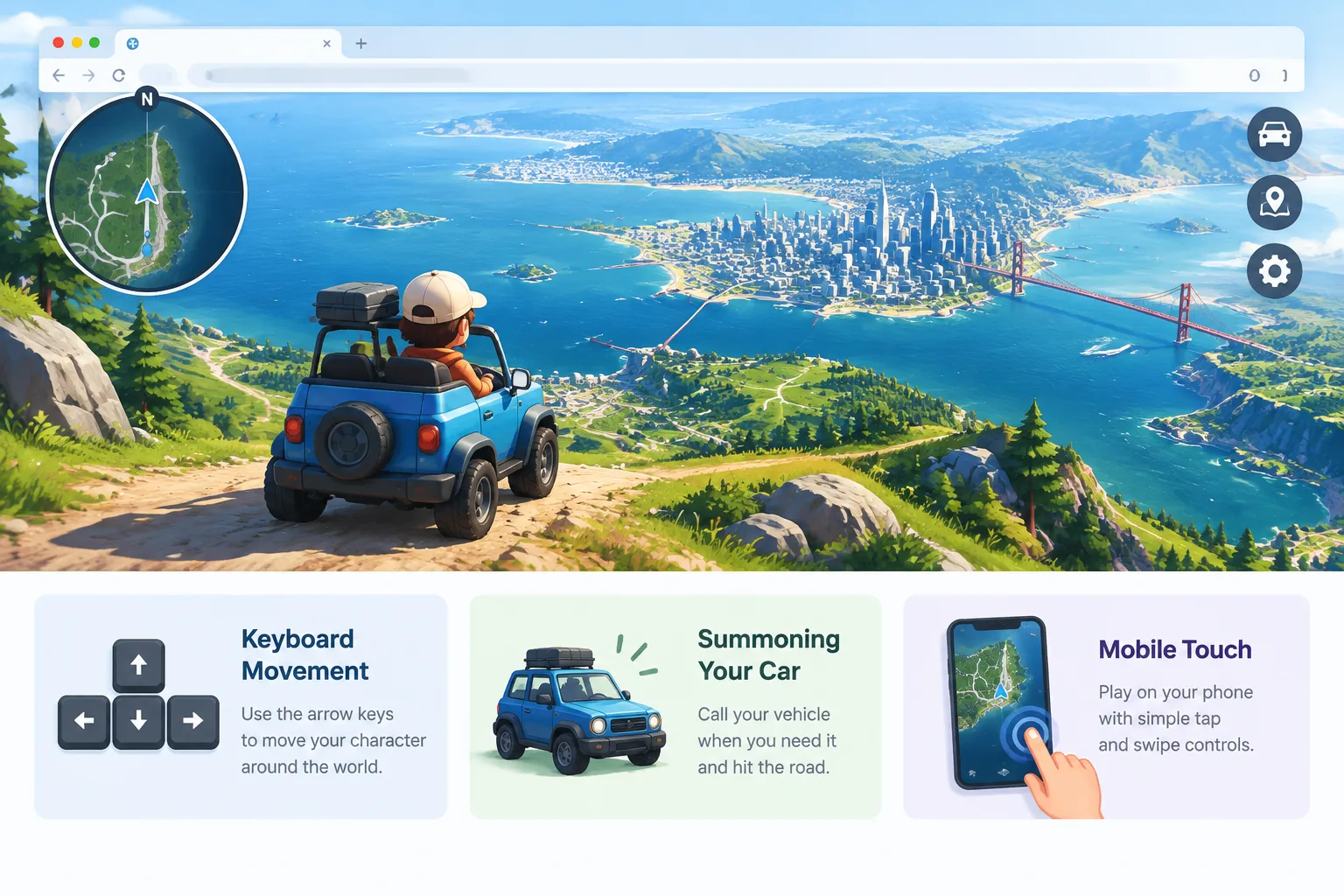
Verified desktop input behavior
| Control goal | What is verified | What to do |
|---|---|---|
| Focus game | Browser captures keyboard after canvas click | Click the game view once |
| Steering | Keyboard input is supported | Use the keys shown in the in-game overlay |
| Camera and look | Mouse or trackpad movement can control view | Move mouse after the game grants pointer control |
| UI actions | Visible buttons and prompts are clickable | Use the on-screen menu or prompt |
| Car summon | An in-game vehicle action exists after landing | Use the summon button or key shown on screen |
| Parachute drop | Spawn and landing sequence is part of the game | Follow the on-screen drop prompt |
Community-reported keyboard shortcuts
| Action | Commonly reported input | Verification status |
|---|---|---|
| Accelerate | W or Up Arrow | Community-reported, not officially confirmed |
| Brake or reverse | S or Down Arrow | Community-reported, not officially confirmed |
| Steer left or right | A and D, or Left and Right Arrows | Community-reported, not officially confirmed |
| Handbrake | Space | Community-reported, not officially confirmed |
| Summon car | C | Community-reported, not officially confirmed |
| Reset or recover | R | Community-reported, not officially confirmed |
These shortcuts appear in player discussions, but they are not a guaranteed official keymap. Treat them as starting points and confirm each input in your own browser session. The safest reference is always the control hint shown by the live game. For handling advice after you confirm your keys, see the driving guide.
How do you summon your car in Hop.Earth?
To summon your car in Hop.Earth, land from the parachute drop, wait for the map stream to load, then use the vehicle summon control shown on screen. The car appears on a valid road surface. If nothing happens, move to a road, wait a few seconds, or reload. Hop.Earth has no codes mechanism.
Car summoning is part of normal play. It is not a redeem-code feature, and the game does not use codes for vehicles or controls. If a website offers Hop.Earth codes, that page is not describing a verified game mechanic.
Step-by-step car summon
- Complete the parachute drop and wait until your character is stable on the ground.
- Let the surrounding map tiles and roads render. A fast connection still needs a moment for streaming map data.
- Look for a vehicle icon, a summon button, or a keyboard hint on the game interface.
- Activate the summon control once. Do not spam it while the map is still loading.
- If no car appears, confirm that you are standing on or near a road, not on water, a building, or steep terrain.
- If the button disappears, click the game canvas to restore focus and try again.
- Reload the page if the map stream appears stuck. This resets the browser session without changing the game itself.
Common car summon problems
| Symptom | Likely cause | Fix |
|---|---|---|
| Summon button is missing | Interface has not fully loaded | Wait a few seconds, then reload |
| Car does not appear | Invalid spawn surface | Move to a road or flat open area |
| Car appears far away | Map streaming delay or position mismatch | Look around, wait, or summon again |
| Key does nothing | Browser canvas lost focus | Click the game area once |
| Mobile tap is ignored | Browser gesture or focus issue | Tap the game once, then use the touch control |
| Nothing works after landing | Network or WebGL stall | Check connection, reload, try another browser |
If you are still stuck, the basics page covers connection and performance checks that affect map streaming and input.
What are the Hop.Earth mobile touch controls?
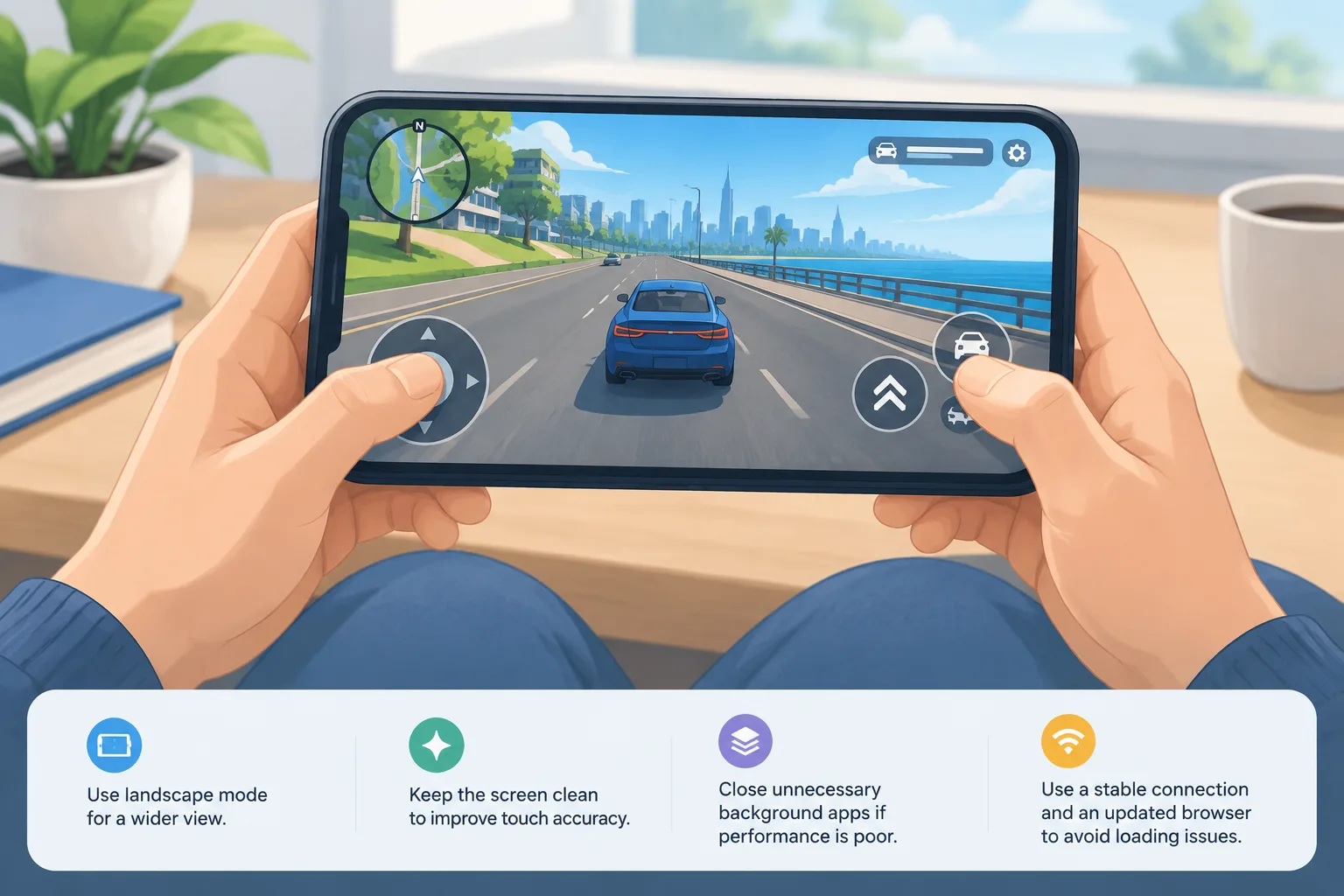
Hop.Earth mobile touch controls are on-screen buttons and gestures that replace the keyboard. The game runs in a mobile browser, so performance depends on your phone, browser, and connection. Use landscape orientation for more screen space. Touch steering usually uses a virtual joystick or left and right zones, while throttle, brake, and summon are separate buttons.
Mobile control checklist
- Open Hop.Earth in an up-to-date browser such as Chrome or Safari.
- Allow the page to load fully before touching the driving controls.
- Rotate your phone to landscape for a wider view and larger buttons.
- Tap the game once so the browser gives the page input focus.
- Keep one thumb on the steering zone and the other near throttle and brake.
- Avoid pinch-zooming while driving; browser zoom gestures can interrupt touch controls.
- Close background apps and extra tabs if the frame rate drops.
- Use a stable Wi-Fi or mobile data connection because map streaming continues while you drive.
Mobile play does not have a separate code system either. Summoning, driving, and racing all use the visible touch interface. If the touch controls feel delayed, the problem is usually device load, browser memory, or network stability rather than a hidden setting.
Which Hop.Earth keyboard controls are verified vs community-reported?
No fixed official keymap is guaranteed across every Hop.Earth build. The verified part is that desktop keyboard input works when the browser canvas has focus. Community lists often map WASD or arrow keys to driving, Space to handbrake, and C to car summon, but these bindings are not confirmed by official documentation and can change.
| Action | Community-reported input | What to verify in-game |
|---|---|---|
| Drive forward | W or Up Arrow | Press once and watch for forward movement |
| Drive backward | S or Down Arrow | Test at low speed in an open area |
| Steer left or right | A and D, or Left and Right Arrows | Check whether steering is direct or speed-sensitive |
| Handbrake | Space | Test on a safe road before using it in traffic |
| Summon car | C | Confirm the prompt appears after landing |
| Camera | Mouse drag or movement | Check whether pointer lock is active |
| Reset or recover | R | Test only when stopped or stuck |
Keyboard layout matters. If you use AZERTY, Dvorak, or another non-QWERTY layout, the physical keys may not match community lists. You can remap keys at the operating-system or browser level, but Hop.Earth itself may not expose a key-binding menu. The live on-screen hint remains the source of truth. For route and handling tactics after you confirm your layout, read the driving guide.
How do you fix unresponsive Hop.Earth controls?
Unresponsive Hop.Earth controls usually come from browser focus, extensions, or hardware issues. Click the game canvas first. If keys still fail, try a private window, disable extensions, check keyboard connection, and reload. On mobile, tap the game once, rotate to landscape, and close other tabs. If the whole game is slow, lower browser load and check WebGL support.
Desktop troubleshooting order
- Click the game canvas. Browser games often ignore keys until the page element has focus.
- Test a simple key such as the one shown for throttle or brake in the on-screen overlay.
- Open the game in a private or incognito window to rule out extensions.
- Disconnect any controller or racing wheel that may be sending conflicting input.
- Check that your keyboard is connected and that another application is not capturing keys.
- Reload the page and wait for the map to stream before driving.
- Try a different browser if the issue persists.
Mobile troubleshooting order
- Tap the game once so the browser routes touch input to the page.
- Rotate to landscape and wait for the layout to settle.
- Close other tabs and background apps to free memory.
- Disable browser gesture navigation if it interferes with steering.
- Reload the page and allow it to load fully before touching the controls.
- Switch between Wi-Fi and mobile data to compare stability.
| Symptom | Likely cause | Fix |
|---|---|---|
| Keyboard has no input | Canvas not focused | Click the game area |
| Some keys work, others do not | Browser shortcut conflict | Test in a private window |
| Mobile touch is delayed | Low memory or many tabs | Close tabs, reload |
| Vehicle will not summon | Map not loaded or invalid surface | Wait for roads to render, move to a road |
| Steering sticks | Controller or touch interference | Disconnect controller, retap screen |
| Laggy controls | Weak GPU or unstable network | Reduce browser load, use a stable connection |
For broader performance and connection fixes, see the basics page.
How do controls work in Hop.Earth multiplayer races?
In Hop.Earth multiplayer races, driving controls stay the same as solo play, but race UI adds countdown, checkpoints, and reset options. You need stable input and a good connection because other players and map chunks load at the same time. Use the same focus and mobile touch checks before the race starts.
Race preparation checklist
- Join the lobby early enough to test steering and braking.
- Confirm that the browser tab stays active; alt-tabbing can interrupt keyboard focus.
- On mobile, lock orientation to landscape if your browser supports it.
- Close downloads and streaming apps that compete for bandwidth.
- Test the summon control only if the race mode allows it; some race flows may place you directly in a vehicle.
- Keep the on-screen control hint visible until you are comfortable with the inputs.
Multiplayer does not introduce a separate control scheme. If your inputs work in free roam, they should work in a race, provided the browser keeps focus and the connection remains stable. For race flow and Season Zero context, see the multiplayer page.
What is the best control setup for smooth driving?
For smooth driving, prioritize steady steering and early braking over high speed. If you use keyboard, tap steering keys in short pulses instead of holding them. On mobile, use landscape and keep your thumb on the steering zone. Adjust camera for forward visibility. These are community driving strategies, not official settings.
Practical driving habits
- Look ahead at the road instead of at your vehicle.
- Brake before a turn, then accelerate through the exit.
- Avoid sharp steering at top speed unless you are testing a handbrake turn.
- Stay on roads when you need reliable traction and predictable map streaming.
- Use flat open areas to test any community-reported handbrake or reset key.
- Reset your camera after a crash so you can see the next road section.
If you want route ideas and handling practice, browse the driving guide. If you want to compare Hop.Earth with other browser driving games, see games like Hop.Earth.
FAQ
Does Hop.Earth have codes for cars or controls?
No. Hop.Earth has no codes mechanism. Car summoning and controls are in-game actions, not redeem codes. Any page offering Hop.Earth codes is not describing a verified feature of the game.
Can I change Hop.Earth key bindings?
There is no confirmed official key-binding menu in the browser build. You can use browser or operating-system keyboard remapping, but the game's on-screen control hint remains the source of truth because community key lists are unverified.
Why is my car not summoning in Hop.Earth?
Your car may not summon if you are not on a valid road, the map stream has not loaded, or the game canvas lost focus. Wait for roads to render, move to a road, click the game, and use the summon control again.
Are Hop.Earth controls different on iPhone and Android?
The core touch controls are similar: on-screen steering, throttle, brake, and summon. Differences come from browser behavior, screen size, and performance. Chrome on Android and Safari on iOS both need a fully loaded page and a tap to focus.
Does Hop.Earth support WASD or arrow keys?
Community reports mention both WASD and arrow keys for driving. Because no fixed keymap is officially confirmed across all builds, test both and follow the on-screen control hint instead of assuming one layout is universal.
Can I use a controller with Hop.Earth?
Some browsers can map gamepads to web games, but Hop.Earth does not publish a confirmed controller layout. If you connect a controller, test it in a safe area and disconnect it if it interferes with keyboard input or causes steering drift.
Is Hop.Earth playable on mobile browsers?
Yes. Hop.Earth is a browser game with touch controls. Mobile play depends on device performance, browser version, and network stability. Landscape orientation and a recent browser generally give the best experience.
Start driving with the right controls
Open hop.earth in a desktop or mobile browser, wait for the map to load, and click or tap the game once so input registers. Use the on-screen control hint as your primary reference, and treat community key lists as starting points. For next steps, read the driving guide for handling tips, the basics page for connection setup, and the multiplayer page for race preparation.
If you prefer a different browser game, the games like Hop.Earth page lists alternatives, but for the real-world map driving experience, hop.earth remains the place to test your confirmed controls.