
Hop Earth
Hop Earth on a Low-End Computer: Lag and Performance Tips
Hop.Earth can run on some low-end computers, but lag depends on browser, GPU, RAM, and connection. Use these safe, device-dependent performance tips.

Hop Earth on a Low-End Computer: Lag and Performance Tips
Hop Earth is a browser game that turns real-world map data into a drivable Earth, so performance depends heavily on your browser, GPU, CPU, RAM, and connection. This Hop Earth low end computer guide covers what can run, why lag happens, and which safe fixes are worth trying. Results vary by device; this page does not promise minimum specs or FPS. Last reviewed: 2026-09-21.
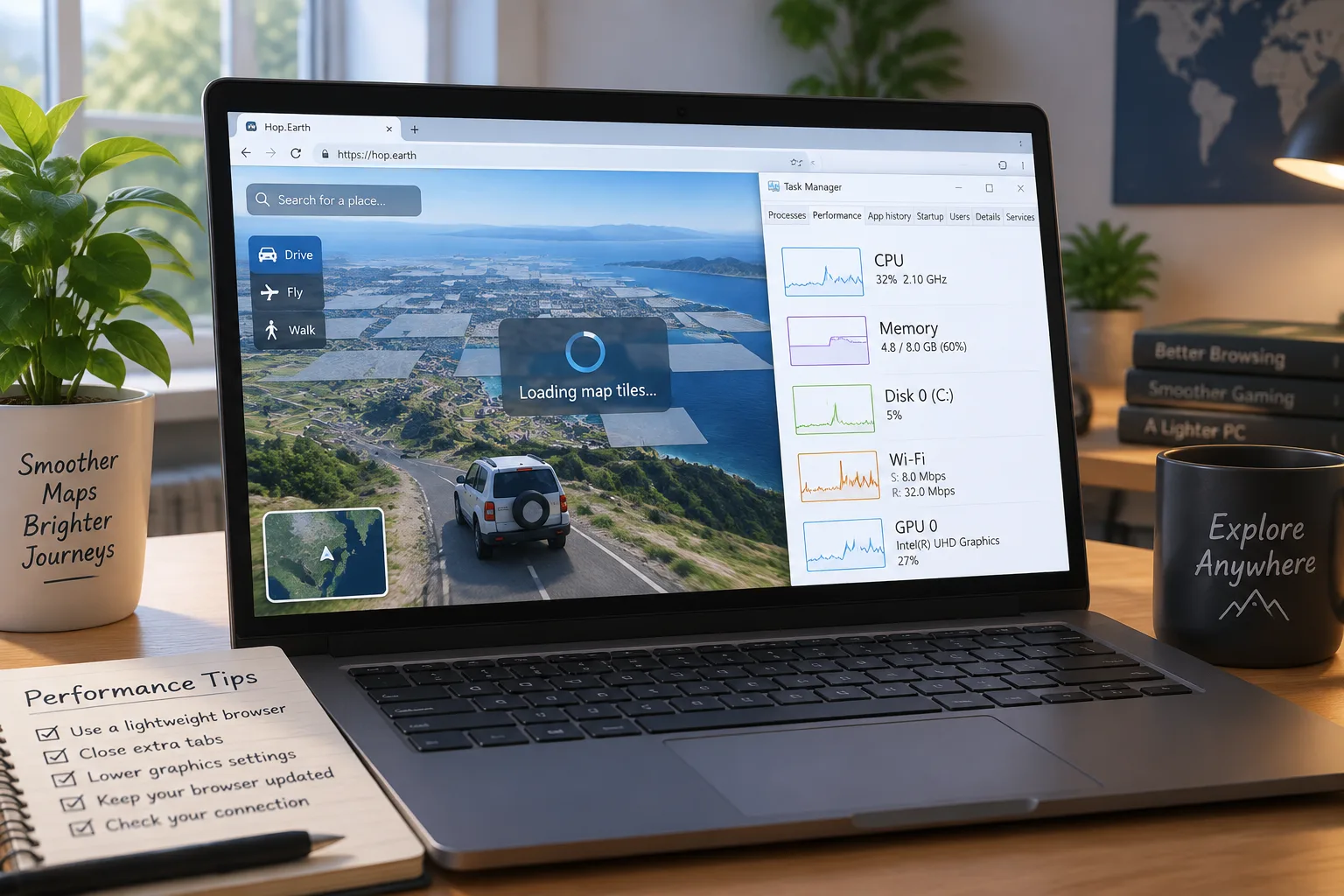
Can Hop.Earth run on a low-end PC?
Yes, Hop.Earth can run on some low-end PCs because it runs in a browser rather than requiring a large install, but smoothness is not guaranteed. What matters most is whether your browser supports modern WebGL, whether your integrated GPU can handle streamed 3D map data, and whether your internet connection is stable. For a baseline, see the Basics section.
What low-end means for a browser game
A low-end computer for Hop.Earth is not just an old CPU. The browser itself uses memory, the GPU renders 3D terrain, and the connection streams map tiles and elevation. If any of those parts is under pressure, you may see stutter, delayed controls, or slow map loading. A device that handles office work can still struggle with continuous 3D streaming.
Why does Hop.Earth lag on a low-end computer?
Hop.Earth lags on a low-end computer mainly because the browser must render 3D terrain while continuously streaming map and elevation data. Limited CPU, integrated graphics, low RAM, background apps, browser extensions, and unstable Wi-Fi can all create stutter, input delay, or map pop-in. The exact cause varies by device, so test changes one at a time. For driving-specific behavior, see Driving tips.
Is it FPS lag, network lag, or map-loading lag?
FPS lag looks like a low frame rate everywhere, even when you are stationary. Network lag often appears as delayed multiplayer movement or rubber-banding. Map-loading lag shows up as missing tiles, blurry textures, or freezes when you enter a new area. Identifying the type helps you choose a safe fix instead of guessing.
How do you fix Hop.Earth lag?
Start with the safest fixes: close background apps, update your browser, turn on hardware acceleration, reduce the browser window size, and use a wired connection if possible. These steps lower memory pressure and help the browser focus on rendering. If lag continues, test one change at a time so you know what helped. Also check Hop.Earth controls so input problems are not mistaken for lag.
Safe browser checklist
- Update Chrome, Edge, Firefox, or your main browser.
- Confirm hardware acceleration is enabled in browser settings.
- Close extra tabs, chat apps, launchers, and video streams.
- Disable browser extensions you do not need, especially overlay and recording tools.
- Reduce the game window size to lower the rendering load.
- Restart the browser after changes.
Connection and server-side factors
A stable, low-latency connection matters because Hop.Earth streams real-world map data. Wi-Fi interference, downloads on the same network, and distant servers can all add delay. Ethernet is often more stable than Wi-Fi when possible. If only multiplayer races feel bad, read the Multiplayer guide before blaming your computer.
In-game habits that reduce stutter
Driving at high speed forces new map data to load quickly. If your computer stutters, slow down briefly in new areas, avoid constant 180-degree turns, and let the map settle before accelerating again. These habits do not upgrade your hardware, but they can make low-end sessions less frustrating.
What are safe settings to change for Hop.Earth performance?
Safe changes are browser-level and reversible: enable hardware acceleration, update graphics drivers from your PC maker, set Windows power mode to Balanced or Best Performance when plugged in, and close heavy tabs. Avoid registry cleaners, overclocking, security-disabling boosters, or unknown downloads. Hop.Earth needs a stable browser more than aggressive tweaks. Start with Basics if you want the simplest setup order.
What not to do
Do not install random game boosters, disable antivirus, edit the registry, or overclock a laptop just for a browser game. Those steps can create instability, overheating, or security problems. Hop.Earth has no official minimum-spec guarantee on this wiki, and no FPS promise should be trusted. If a tool asks for payment to fix browser lag, close it.
Verified mechanics vs. community strategy
| Type | Example | How to treat it |
|---|---|---|
| Verified | Hop.Earth runs in a browser and streams real-world map data | Use as the baseline for troubleshooting |
| Device-dependent | Performance on integrated graphics or old CPUs | Test on your own device |
| Community strategy | Closing background apps to reduce stutter | Reasonable, but not a guaranteed fix |
Does Hop.Earth perform better on mobile than on a low-end PC?
Not necessarily. A modern phone may feel smoother than an old laptop because mobile browsers are optimized for touch and power use, but phones can throttle when hot and mobile controls differ. A low-end PC may offer a larger screen and keyboard controls, yet still lag if its GPU or RAM is weak. See Hop.Earth on mobile for the mobile trade-offs.
Mobile heat and battery limits
Mobile performance can drop when the device gets hot or the battery is low. If you test Hop.Earth on a phone, remove the case, avoid direct sunlight, and close background apps. A phone that runs well for five minutes may slow down after fifteen minutes. This is normal thermal behavior, not a hidden setting.
How can you tell if Hop.Earth lag is from your computer or the game?
Test one variable at a time. Try a different browser, close all other tabs, compare single-player driving with a multiplayer session, and watch whether lag happens only when new map areas load. If multiple devices on the same network lag, your connection may be the issue. The Multiplayer guide can help separate race lag from device lag.
Quick diagnostic table
| Symptom | Likely area | Safe first step |
|---|---|---|
| Low frame rate everywhere | Browser, GPU, CPU | Close tabs and background apps; enable hardware acceleration |
| Stutter only when driving fast | Map streaming, network | Slow down briefly; test a wired connection |
| High ping in multiplayer | Network or server | Close downloads; test another network; see Multiplayer guide |
| Missing or blurry map tiles | Browser cache, network | Reload; update browser; see Basics |
A simple test plan
- Restart your computer and open only one browser tab.
- Load Hop.Earth and drive the same route for two minutes.
- Note frame rate, steering delay, and map pop-in.
- Enable hardware acceleration and repeat the test.
- Try Ethernet or a different network and repeat again.
What should you expect from Hop.Earth on low-end hardware?
Expect mixed results. Hop.Earth may run, but you might see lower frame rates, delayed steering, blurry or slow-loading map tiles, and pauses when the game streams new terrain. It can still be enjoyable for casual drives if you keep settings conservative. If it is unplayable, browser games with simpler graphics may be a better fit. Browse Games like Hop.Earth for lighter options.
When to stop troubleshooting
If you have tried two browsers, closed background apps, updated drivers, and tested a stable connection, further system tweaks are unlikely to help much. At that point, the bottleneck is probably the hardware or the streamed map workload. Use the game on a stronger device when possible, or choose a lighter browser game.
FAQ
Can Hop Earth run on a low-end computer?
Yes, Hop Earth can run on some low-end computers, but it is not guaranteed to feel smooth. The browser game depends on WebGL support, GPU power, RAM, and connection quality. Try the safe browser fixes first, and judge performance on your own device rather than relying on a single minimum-spec claim. See Basics.
What is the best Hop Earth lag fix for an old laptop?
The best first fix is to close background apps and browser tabs, update your browser, and enable hardware acceleration. Then lower the game window size and use Ethernet if possible. These changes are reversible and target the most common low-end bottlenecks without risky system tweaks. For controls, see Driving.
Does Hop Earth performance improve with more RAM?
More RAM can help if your computer is constantly swapping because too many programs are open, but RAM alone does not guarantee smoother Hop Earth performance. GPU capability, browser version, CPU load, and network stability also matter. Close memory-heavy apps first before assuming you need a hardware upgrade. Start with Basics.
Is Hop Earth playable on integrated graphics?
It can be playable on some integrated graphics, especially in a smaller window and with hardware acceleration enabled. However, integrated GPUs vary widely, and streamed 3D map data can still cause stutter. If performance is poor, reduce the window size, close other apps, and test a different browser. See Driving tips.
Why does Hop Earth stutter when I drive fast?
Driving fast forces the game to load new map and elevation data quickly, which can overwhelm a low-end CPU, GPU, or connection. The stutter often appears as temporary freezes or pop-in. Slowing down briefly, using a stable connection, and reducing browser load can make the experience smoother. See Basics.
Does Hop Earth have graphics settings for low-end computers?
Hop Earth is a browser game, so available options depend on the current build and browser. This wiki does not list unverified graphics menus or minimum specs. Safe adjustments usually happen in the browser and operating system, such as hardware acceleration, window size, power mode, and closing background apps. See Basics.
Is Hop Earth better on mobile for low-end devices?
Mobile can be better on a newer phone with a good browser, but it is not automatically better. Phones may throttle when hot, and touch controls change how the game feels. If you have both, test the same route on each device and compare map loading, steering response, and battery temperature. See Hop.Earth on mobile.
CTA
Ready to test Hop Earth on your own setup? Open hop.earth in a supported browser, make one safe change at a time, and note what improves. If you need a starting point, begin with the Basics section, then move to Driving for control tips. For multiplayer-specific lag, see the Multiplayer guide. If Hop.Earth still will not run well, browse games like Hop.Earth for lighter browser options.