
Hop.Earth
How to Create a Hop.Earth Route or Race Map
A practical Hop.Earth wiki guide to planning routes and race maps: pick a real-world area, scout roads, set checkpoints, share the race, and fix common loading issues.

How to Create a Hop.Earth Route or Race Map
If you searched for hop earth how to create a route, this guide separates a drivable route from a multiplayer race map and keeps the steps tied to the current client.
Hop.Earth turns real-world map data into a drivable browser world. If you want to create a Hop.Earth route, you are usually planning a drivable line through real streets, then optionally turning that plan into a multiplayer race map. This guide explains the workflow, the client limits, and how to share a route without confusing a solo drive with a true race.
Last verified against the live client: 2026-09-21.
What does 'creating a route' mean in Hop.Earth?
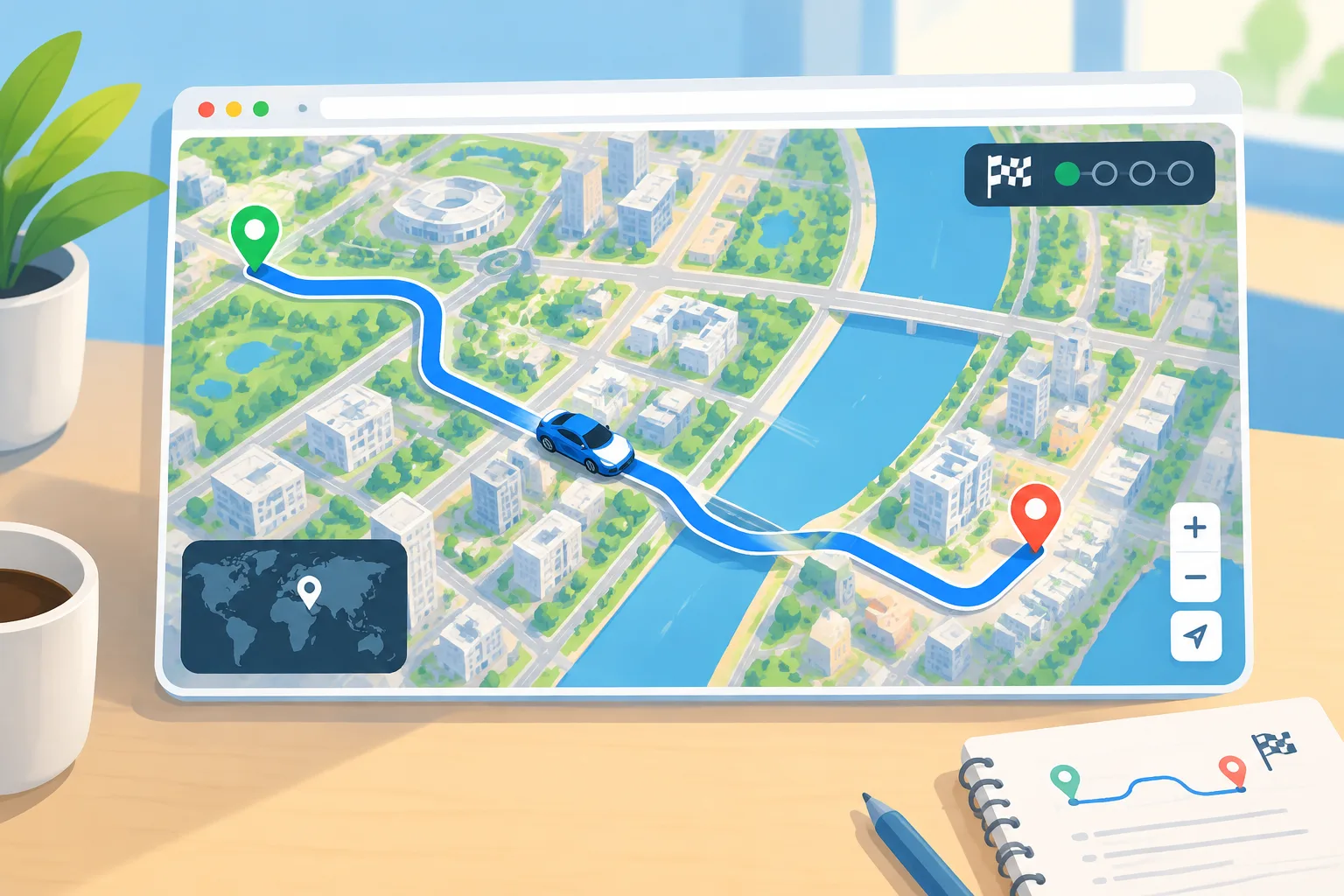
Creating a route in Hop.Earth means choosing a real-world area, planning a drivable path using map data, and then driving it. A shareable race map adds a start, finish, and often checkpoints. The official client is built around streaming map tiles and vehicle handling, not a blank-canvas route editor. So most route creation is planning plus testing, not drawing on an empty map. Hop.Earth map explained
That distinction matters because search results often mix three different tasks:
- Driving to a place: you pick a spawn, summon a car, and drive toward a landmark.
- Planning a route: you scout roads, turns, and elevation before a run.
- Creating a race map: you define a start, finish, and rules, then invite other players.
Only the third task produces something other players can join as a race. The first two are personal or community-shared plans.
Verified mechanics vs community strategy
Verified: Hop.Earth streams real-world map data and supports driving, car summoning, parachute spawn selection, and multiplayer races. Season Zero is part of the live game. Mobile browser play is supported, though performance depends on the device.
Community strategy: Players often scout routes in a solo session, note landmarks, and then recreate the same path in a multiplayer lobby. This is a workflow, not an official save button.
Unverified: A built-in route file format or permanent route library is not documented in the official client. If you see a tool claiming to export Hop.Earth routes, treat it as community-made and test it before relying on it.
What map data and client limits should you check before planning a Hop.Earth route?
Hop.Earth uses OpenStreetMap data plus satellite elevation. That means your route quality depends on the underlying map. Dense cities usually have more drivable roads, while remote areas may have missing paths or steep terrain that a car cannot climb. Use this table to plan around the data:
| Map layer | What it affects | Planning tip |
|---|---|---|
| Road network | Where you can drive | Prefer connected streets; avoid isolated paths |
| Elevation | Climbing and speed | Check hills before setting a race finish |
| Water and bridges | Passability | Bridges are key connectors; dead ends waste time |
| Urban density | Traffic-like turns and junctions | Cities suit short sprints; rural areas suit point-to-point runs |
Before you build a race map, open the area in a solo session. Drive the first and last mile. If the start is on a roof or the finish is inside a building, the race will feel broken even if the map looks fine from above. For handling notes, review Hop.Earth driving tips.
How do you plan a drivable Hop.Earth route step by step?
To plan a drivable Hop.Earth route, pick a themed real-world region, scout the full path in a solo session, mark landmarks as checkpoints, and test the start and finish before sharing. The process is about verification, not drawing on a blank map. Then use these steps:
1. Pick a real-world region with a clear theme. A downtown loop, a coastal highway, or a mountain pass gives the route identity. The theme helps other players understand the race before they join.
2. Choose a spawn or parachute point. In Hop.Earth, you can parachute drop and select where to begin. For a route, pick a spawn that is close to the start line but not inside a wall or water. Test the drop twice.
3. Summon a car and check handling. Car summoning puts a vehicle near you. Confirm the car can handle the first turn and any hills. If the route needs speed, test a straight section. If it needs control, test a tight junction.
4. Scout the full path at low speed. Drive the route once without rushing. Note sharp turns, missing bridges, and places where the map data ends. A route that looks good on a map can fail when the road is a staircase or a pedestrian path.
5. Mark natural checkpoints. Use visible landmarks: a bridge, a roundabout, a tunnel exit, or a distinctive building. In a race, checkpoints keep players on the intended path. In a solo route, they help you remember the line.
6. Set a start and finish that are easy to describe. 'Start at the north side of the roundabout, finish under the bridge' is clearer than coordinates alone. If you share coordinates, add a landmark.
7. Run a full test with a timer. Drive from start to finish without stopping. If a section takes too long or feels empty, shorten it. A good Hop.Earth route is usually 2 to 5 minutes for a sprint, or 8 to 12 minutes for a longer point-to-point race.
8. Record the route for yourself. Since the official client may not save custom routes, keep notes: region name, start landmark, finish landmark, checkpoint landmarks, and any hazards. A short screen recording can help you recreate the race later.
How do you turn a Hop.Earth route into a multiplayer race map?
A multiplayer race needs more than a drivable line. It needs a lobby, a clear start, and rules that other players can follow. Start with create and share a Hop.Earth race and Hop.Earth multiplayer races for the multiplayer side.
Step 1: Open a multiplayer session. Use the game's multiplayer option and choose the same region as your planned route. If the lobby lets you pick a spawn, choose the start area.
Step 2: Communicate the route before the countdown. Because there may be no automatic route overlay, describe the path: 'Follow the river east, turn left at the second bridge, finish at the stadium.' Players who join late need a simple summary.
Step 3: Use a lead-and-follow test. Run one slow lap with everyone following. This reveals confusing turns and shows whether the cars can handle the terrain.
Step 4: Set a fair start. Line up on a straight section with room to accelerate. Avoid starting on a hill or a narrow bridge, which can cause pileups.
Step 5: Decide the finish rule. A finish line can be a landmark, a bridge, or a specific area. If the game does not enforce a finish, use a 'first to call it' rule and agree on it before the race.
Step 6: Add checkpoints if the lobby supports them. If checkpoint tools exist in the current build, place them at major turns. If they do not, use landmarks as manual checkpoints and ask players to call them out.
Step 7: Run a short qualifying race. A 3-minute qualifier shows whether the route works. Then run the full race. Adjust the route if players get lost or if the finish is unclear.
What makes a good Hop.Earth race map?
A good race map is readable, drivable, and fair. It uses real roads that connect, avoids impossible terrain, and gives players a clear finish. The best routes also have a memorable shape: a loop around a harbor, a climb to a viewpoint, or a sprint through a grid of city streets.
Example: City sprint. Pick a downtown area with a grid of one-way streets. Start near a park, turn through four junctions, and finish at a train station. Keep it under 3 minutes. This works well for mobile players because the route is short and the map density is high.
Example: Hill climb. Choose a mountain road with switchbacks. Start at the base, finish at a marked viewpoint. Test the elevation carefully; some slopes may be too steep for certain cars. This route favors control over top speed.
Example: Coastal point-to-point. Follow a shoreline road from one beach to another. Use a bridge as a checkpoint and a pier as the finish. This route is easy to describe and visually clear.
How do you share and test a Hop.Earth route?
Sharing a route is mostly about clear instructions. Since there may not be a universal route link, use a combination of region name, landmarks, and a short video. Post the route in a community space where players can ask questions, then test with desktop and mobile players.
Share these details:
- Region and nearest city or landmark
- Start point with a visible object
- Finish point with a visible object
- Checkpoints in order
- Recommended car type or handling style
- Estimated time
- Known hazards, such as missing bridges or steep hills
Test with different players. One player on desktop and one on mobile will reveal performance and visibility issues. Mobile browser play can have lower frame rates, so avoid routes that depend on pixel-perfect turns.
Gather feedback. Ask: 'Where did you get lost?' and 'Was the finish clear?' Use the answers to move checkpoints or change the finish. A route that works for the creator may fail for everyone else if the instructions assume too much local knowledge.
For more context on the game's structure, browse games like Hop.Earth and compare how other browser driving games handle races.
Why is your Hop.Earth route or race map not working?
Route and race map problems usually come from map streaming, connection quality, or unclear instructions. Start by reloading, reducing other tabs, and testing a less dense area. If the route still fails, isolate the layer that failed and check the specific symptoms below.
Map tiles load slowly. This is often a connection or device issue. Close other tabs, use a wired connection if possible, and reload. If the issue persists, check the wiki's connectivity guides.
The car cannot climb a hill. The route may cross terrain that is too steep for the chosen vehicle. Reroute to a gentler road or switch to a car with better handling.
The start point is inside a building. Spawn selection can place you near geometry. Move the start to a road, then test the drop again.
Players keep missing a turn. The route is not readable enough. Add a landmark before the turn, or move the checkpoint to the junction itself.
The finish is unclear. Use a large, unique object. A bridge, stadium, or tower is better than 'the end of the road.'
Multiplayer desyncs or lags. Reduce the number of players, ask everyone to reload, and avoid routes with heavy city density if connections are unstable. See Hop.Earth multiplayer races for more.
FAQ
How do you create a Hop.Earth route from scratch?
To create a Hop.Earth route from scratch, choose a real-world region, pick a spawn near your intended start, summon a car, and scout the full path in a solo session. Then mark start, finish, and checkpoint landmarks. The official client may not save the route, so keep notes and share the path clearly.
Can you create a custom route in Hop.Earth?
You can plan and drive a custom route through real-world map data, but the official client does not publicly document a built-in route editor. In practice, players create routes by choosing a region, scouting roads, and sharing start, finish, and checkpoint landmarks. A custom route is a community workflow, not a guaranteed saved file.
How do you share a Hop.Earth race map with friends?
What makes a good Hop.Earth race route?
A good route uses connected roads, avoids impossible terrain, and has a clear start and finish. Keep sprint races around 2 to 5 minutes and longer races around 8 to 12 minutes. Use landmarks as checkpoints so players can follow the path without needing a perfect map overlay.
Does Hop.Earth have a route editor?
As of the current client, there is no widely documented route editor that lets you draw and save a path. The game focuses on real-world map streaming and driving. Community route creation usually happens through scouting, note-taking, and multiplayer lobby setup. Check the latest patch notes before assuming a new editor has been added.
Why is my Hop.Earth route not loading?
Route loading problems are usually map streaming or connection problems. Reload the page, close heavy tabs, and try a less dense area. If only one section fails, the map data may be missing there. Reroute around the gap or choose a different region.
Where can you start driving your Hop.Earth route?
You can start driving your Hop.Earth route right now by opening the official game, choosing a region, and scouting a short loop. If you want a baseline first, read the wiki basics and driving tips, then invite friends once the route is clear.
Ready to test your plan? Open hop.earth in your browser, pick a region, and scout a short route before you invite anyone. If you want a baseline first, start with Hop.Earth map explained and Hop.Earth driving tips. Then build your race, share the landmarks, and run a slow test lap before the real competition.
Need more help? Explore the Hop.Earth multiplayer races section or compare browser driving games in games like Hop.Earth.