
Hop.Earth
Hop.Earth Race Link Not Working: Joining Checklist
Troubleshoot a Hop.Earth race link not working with a practical joining checklist covering URL, session, lobby, access, and mobile browser fixes.

Hop.Earth Race Link Not Working: Joining Checklist
If your Hop.Earth race link not working, start by checking the full URL, your current browser session, and whether the race is still open. Most failures come from an incomplete link, a lobby that has closed, a different browser profile, or an access setting. This guide gives you a practical joining checklist without guessing.
Last verified: September 21, 2026.
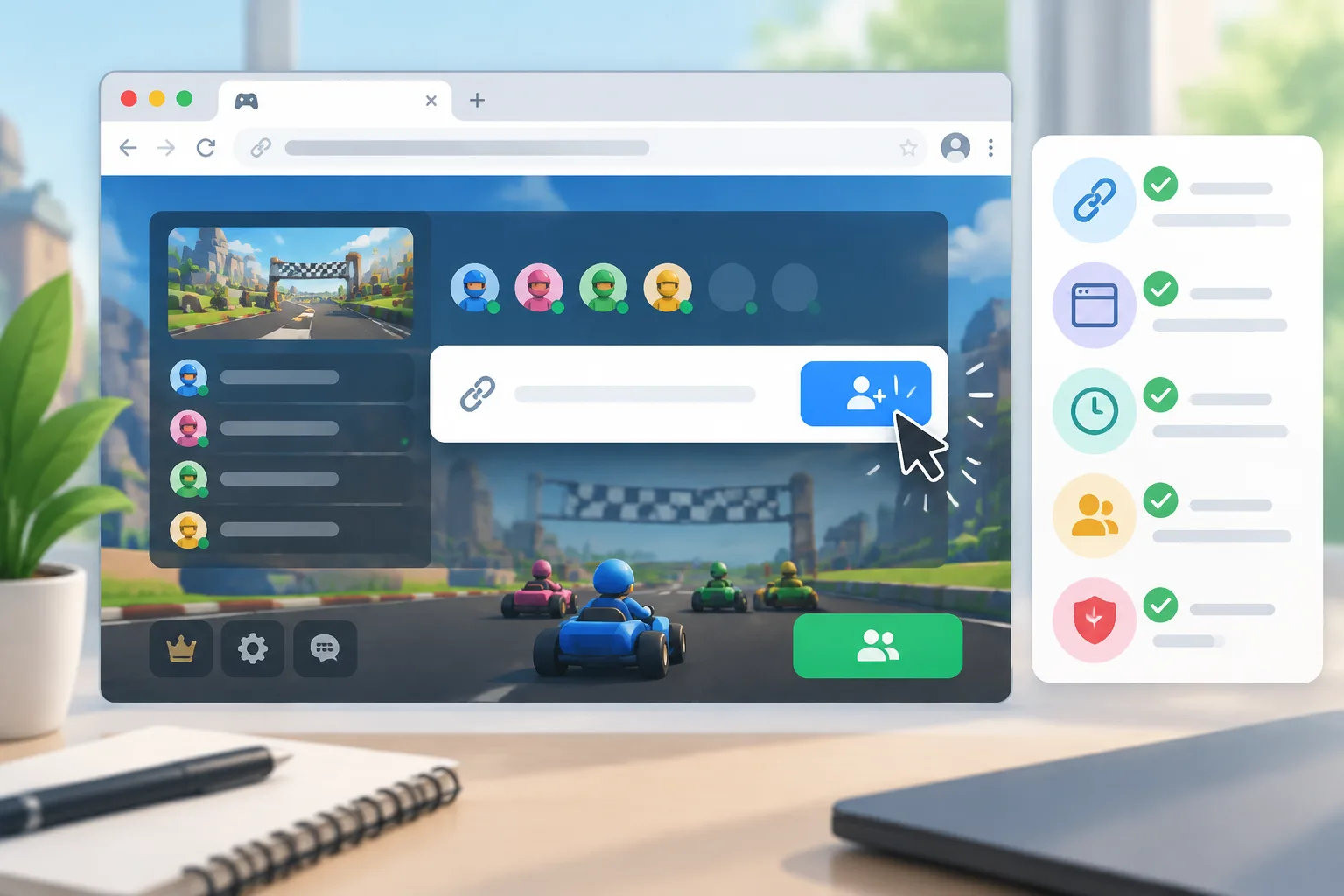
Hop.Earth is a browser game, so race links depend on a live session rather than a permanent download. For a broader overview, see Hop.Earth multiplayer races. If the link fails, do not assume the race was deleted; it may simply be unavailable, full, already started, or tied to a different browser session.
Why is my Hop.Earth race link not working?
A Hop.Earth race link usually fails because the URL is incomplete, the race is no longer open, or your browser is not in the same session context as the host. Check the whole link first, then confirm the host still has the race available. Race links are not permanent invitations.
Check the full URL
Copy the entire link from the original message. Do not retype it. Make sure it uses the official domain, not a lookalike or a shortener. Remove trailing punctuation that chat apps sometimes attach.
Check the session
Open Hop.Earth in the same browser where you normally play. If you use a guest profile, keep the same profile. If you clear cookies or switch browsers, the host may need to send a new link.
Check race availability
Ask the host whether the lobby is still open. A race that is full, already started, or finished may still show a page but not allow new players. This is one of the most common reasons a link appears broken.
What should I check first when I cannot join Hop Earth race?
When you cannot join Hop Earth race, check the complete link, open it in the same browser where Hop.Earth works, and confirm you are signed in or using the same guest profile. If the lobby is full, started, or closed, the link may open but the join button will not work. Basic account and browser details are covered in Hop.Earth basics.
First-five-minutes checklist
- Copy the full invite URL and paste it into a normal browser tab.
- Confirm the host has not closed the lobby or started the race.
- Use the same browser profile and cookie settings as before.
- Disable content blockers for the game tab if the join button does not respond.
- Refresh once, then ask the host for a fresh link if nothing changes.
Is a Hop.Earth race invite not working because the link expired?
A Hop.Earth race invite may stop working when the race ends, the lobby closes, the host leaves, or the game session resets. Some links are session-bound and are not meant to be permanent. An expired-looking link is not proof that the race was deleted; ask the host for a fresh invite.
| Symptom | Likely cause | What to do |
|---|---|---|
| Blank page | Incomplete URL or stale cache | Recopy the link, hard refresh, try a private window |
| Join button does nothing | Lobby full, started, or closed | Ask the host to confirm status |
| Access denied | Private or friends-only race | Request permission from the host |
| Works for host, not you | Browser session mismatch | Use the same browser profile and allow cookies |
| Mobile link opens in chat app | In-app browser limitation | Copy and open in Chrome or Safari |
| Race disappears after reload | Session ended or reset | Ask for a new invite |
Why does the race link open but not join?
A race link can open while the join action fails because the lobby has moved past the join stage. The page may load an old shell, a full lobby, or a permission screen. Refresh once, check the host status, and avoid opening the link in many different browsers. If you do get in and the car feels wrong, see driving controls and handling.
Common join-stage problems
- The host started the race before you joined.
- The lobby reached its player limit.
- The race is private and your account is not on the list.
- The browser blocked cookies, storage, or scripts needed by the game.
- The link points to a session that was replaced by a newer lobby.
How do I fix a Hop.Earth race link on mobile?
On mobile, fix a Hop.Earth race link by opening it in a full browser such as Chrome or Safari, not an in-app browser. Disable content blockers for the page, allow cookies, and keep the tab active. If the link came from a chat app, copy it and paste it into the browser address bar. For mobile browser habits, see Hop.Earth basics.
Mobile steps
- Long-press the link and copy it.
- Open Chrome or Safari directly.
- Paste the link into a new tab.
- Allow cookies and site data for Hop.Earth.
- Turn off low-power mode if the game stalls during loading.
- If the lobby is full, do not keep refreshing; ask the host to wait or free a slot.
When should I ask the host to send a new link?
Ask the host to send a new link when the lobby is closed, the race already started, the link is truncated, or your browser profile changed. A fresh invite is the cleanest fix because it points to the current session. Do not keep retrying an old link if the host can generate another.
How to ask without slowing the lobby
Send the host a short message with the exact error, your browser name, and whether you were signed in. That helps them decide whether to reopen the lobby or create a new race. If the problem affects everyone, the race may need to be recreated.
How to share a Hop.Earth race link correctly
To share a Hop.Earth race link correctly, create the race first, wait until the lobby is open, and use the game's own share or copy-link control. Send the complete URL, not a screenshot or shortened version. Keep the host tab open until players join. For multiplayer setup, use Hop.Earth multiplayer races.
Host checklist
- Open Hop.Earth in a supported browser.
- Enter the multiplayer section.
- Create the race and set access rules.
- Copy the invite link from the game interface.
- Send the full link in chat.
- Keep the lobby open until everyone joins.
- Tell players to use a normal browser, not an in-app view.
Verified mechanics vs community troubleshooting
Not every claim about race links is confirmed. Separate what the browser game requires from what players report in community threads. Use the table below as a guide, and treat unconfirmed items as troubleshooting ideas rather than guarantees.
| Item | Status | What it means |
|---|---|---|
| Hop.Earth runs in a browser | Verified | Browser choice, cookies, and session state can affect joining |
| Race links are permanent | Not verified | Treat links as temporary and session-bound |
| Host leaving can interrupt a lobby | Community-reported | It may close or disrupt the race, but results vary |
| Clearing cache can help | Community-reported | It can fix stale pages, but it may also sign you out |
| Shortened links are safer | Not recommended | Use the original full URL from the game |
If you want to compare Hop.Earth with other browser driving games, see games like Hop.Earth. That page is useful when a race link problem makes you wonder whether the issue is the game or the genre.
Quick checklist before you retry
Use this structured checklist before you send another message to the host.
| Step | Check | Why it matters |
|---|---|---|
| 1 | Full URL copied | Partial links fail silently |
| 2 | Official domain | Lookalike links cannot join a real lobby |
| 3 | Same browser profile | Session state may be tied to cookies |
| 4 | Host lobby still open | Ended races cannot accept players |
| 5 | Capacity and access | Full or private races block joins |
| 6 | One clean refresh | Repeated reloads can confuse the lobby state |
| 7 | Mobile full browser | In-app browsers often block game features |
| 8 | Fresh invite | A new link points to the current session |
What not to do when a Hop.Earth race link fails
- Do not assume the race was deleted just because your link failed.
- Do not spam the link in every browser you have.
- Do not install unknown extensions to force a join.
- Do not share account details or personal information with other players.
- Do not treat a working link as permanent for future sessions.
Frequently asked questions
Why is my Hop.Earth race link not working?
Your Hop.Earth race link is probably not working because the URL is incomplete, the lobby has closed, or your browser session does not match the host's. Check the full link, open it in a normal browser, confirm the host's race is still open, then request a fresh invite if needed.
Can I join a Hop Earth race without the link?
Sometimes. If the race is public or the host has opened it to friends, you may find it through the in-game multiplayer menu. Otherwise, you need a current invite from the host. See Hop.Earth multiplayer races for the lobby flow.
Does a Hop.Earth race link expire?
A Hop.Earth race link can stop working when the session it points to ends, the host closes the lobby, or the race starts. There is no verified rule that every link expires after a fixed time, so treat it as temporary rather than permanent.
Why does the link work for my friend but not for me?
The link may work for one player because their browser profile, cookies, or network has a valid session while yours does not. It can also mean the lobby is full or restricted. Compare browsers, clear the site's cache, and ask the host to confirm access settings.
How do I report a broken Hop.Earth race link?
There is no universal report button for every broken race link. Tell the host, describe the error, and ask for a new invite. If the whole game is failing, check broader browser fixes through Hop.Earth basics and the multiplayer page.
What to do next
Open the official game at hop.earth, then review Hop.Earth multiplayer races for lobby flow and sharing basics. If the link still fails, ask the host for a new invite and keep the host tab open until everyone has joined.