
Hop.Earth not working
Hop.Earth Not Working? Fixes for Loading Failures and Black Screens
Troubleshoot Hop.Earth not working issues with practical fixes for loading failures, black screens, connection problems, and browser performance issues.
Hop.Earth Not Working? Fixes for Loading Failures and Black Screens
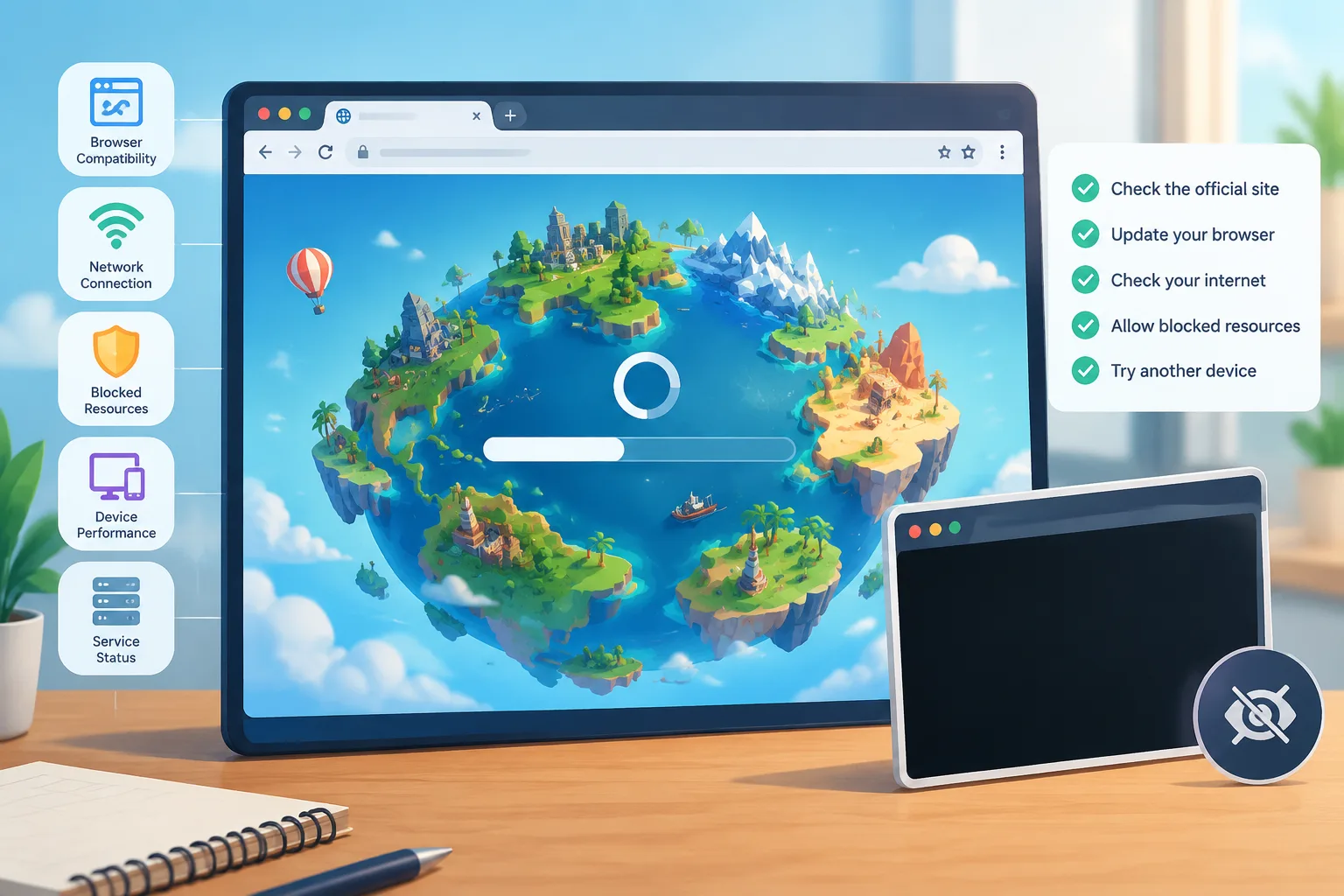
If Hop.Earth is not working, the problem is usually related to browser compatibility, connection issues, blocked resources, device performance, or temporary service problems. Start by checking whether the game loads correctly at the official Hop.Earth website, then work through browser, network, and device fixes before assuming the game is unavailable.
This guide covers common reports such as Hop.Earth will not load, Hop.Earth black screen issues, and situations where players think Hop.Earth is down. It focuses on practical troubleshooting rather than unverified claims about server status or game mechanics.
For general game information, see our Hop.Earth basics guide and for gameplay help visit the Hop.Earth driving guide.
Is Hop.Earth down right now?
Hop.Earth may be temporarily unavailable if the official website cannot be reached, game assets fail to load, or many players experience the same issue at the same time. A single player experiencing a loading failure does not necessarily mean the game service is down.
Before changing settings, try these quick checks:
- Open the official Hop.Earth website in a new browser tab.
- Refresh the page after waiting a few minutes.
- Check whether other websites and browser games load normally.
- Try another browser or device if available.
A temporary outage, maintenance period, or network problem can all create similar symptoms. If the website opens but the game does not start, the issue is more likely related to your browser, device, or connection.
Why won't Hop.Earth load?
Hop.Earth may fail to load because the browser cannot download required game files, the device cannot handle the graphics workload, or network restrictions prevent important resources from loading. Clearing browser data, updating software, and checking extensions are common solutions.
Browser-based 3D games depend on several systems working together:
- A modern browser with current rendering support
- Stable internet access
- Enough memory for map and game assets
- Enabled JavaScript and required browser features
- A device capable of displaying interactive graphics
Because Hop.Earth uses real-world map environments, loading may involve retrieving large amounts of visual and location-based data. Slow connections or limited hardware can make the initial loading process take longer.
How do you fix Hop.Earth loading problems?
Refresh and restart the browser
The simplest fix is often a complete restart.
Try these steps:
- Close the Hop.Earth tab completely.
- Close and reopen your browser.
- Visit the game again.
- Allow extra time for the map environment to load.
A browser tab that has been open for a long time may have reduced available memory, especially on mobile devices.
Clear cached files
Browsers store temporary files to make websites load faster. Occasionally, outdated cached files can prevent a web application from starting correctly.
To test whether caching is the problem:
- Clear cached images and files in your browser settings.
- Restart the browser.
- Load Hop.Earth again.
Avoid deleting saved passwords or important browser data unless you specifically want to remove them.
Disable browser extensions temporarily
Some extensions can interfere with browser games by blocking scripts, modifying pages, or filtering network requests.
Common examples include:
- Ad blockers
- Privacy protection extensions
- Script blockers
- Security tools with web filtering
Try opening Hop.Earth in a private or incognito window. If it works there, an extension or browser setting may be responsible.
What should you do if Hop.Earth shows a black screen?
A Hop.Earth black screen usually means the page opened but the game environment did not render correctly. This can happen when graphics features fail, resources do not finish loading, or the browser has trouble using available hardware acceleration.
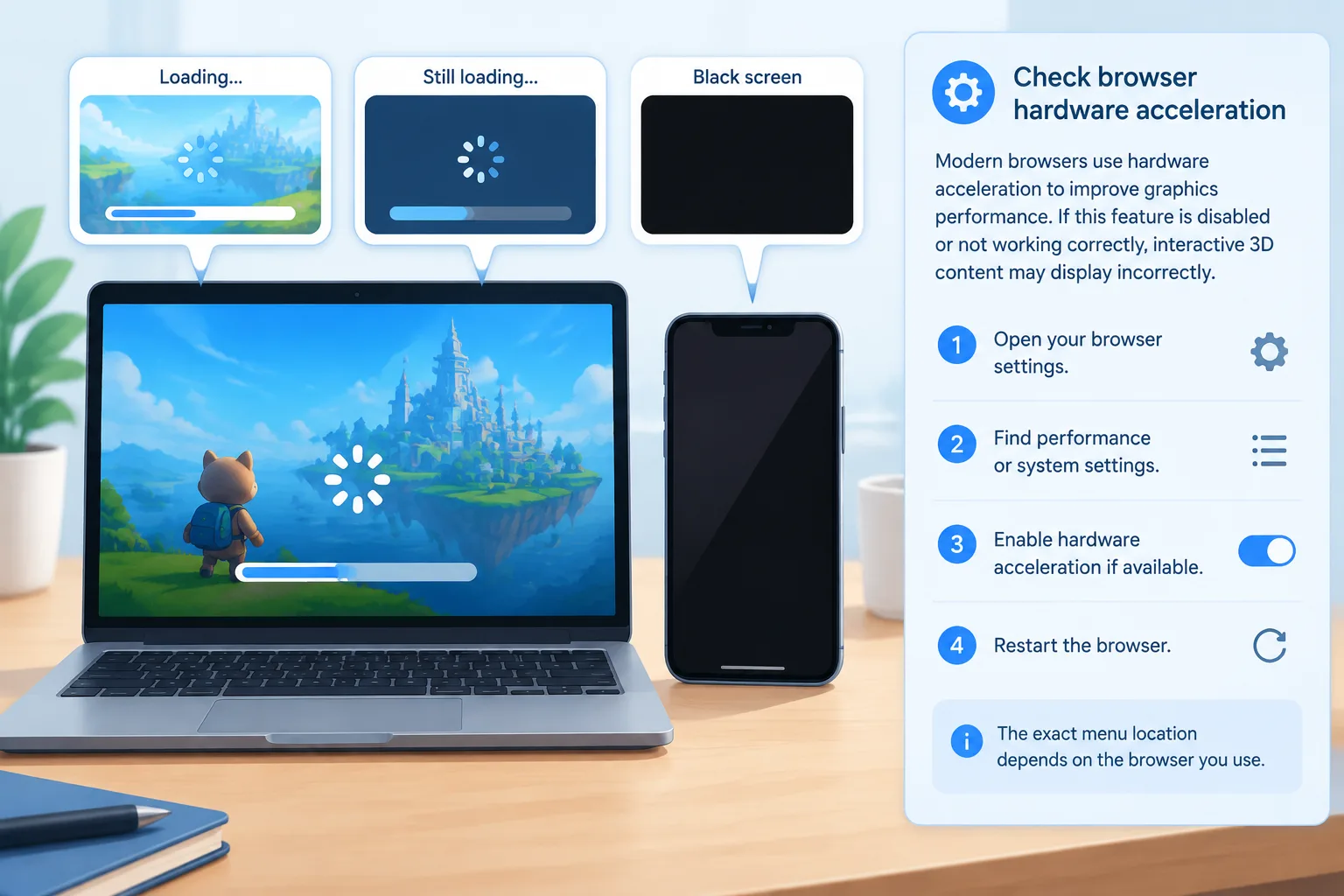
Try these fixes in order:
Check browser hardware acceleration
Modern browsers use hardware acceleration to improve graphics performance. If this feature is disabled or not working correctly, interactive 3D content may display incorrectly.
Possible steps:
- Open your browser settings.
- Find performance or system settings.
- Enable hardware acceleration if available.
- Restart the browser.
The exact menu location depends on the browser you use.
Update your browser
Older browser versions may have problems with newer web technologies.
Make sure you are using a current version of a major browser. Updating can resolve issues involving graphics rendering, security features, and compatibility.
Reduce device workload
A black screen can sometimes happen when a device is under heavy load.
Before opening Hop.Earth:
- Close unused browser tabs.
- Exit demanding applications.
- Restart your device.
- Connect your device to power if battery-saving modes are limiting performance.
Why does Hop.Earth work on desktop but not mobile?
Hop.Earth can behave differently on phones and tablets because mobile devices have different processing power, memory limits, and browser features.
If Hop.Earth does not work on mobile, try:
- Updating your mobile browser.
- Using a stable Wi-Fi connection.
- Closing other apps.
- Rotating the device if the display behaves incorrectly.
- Testing another supported browser.
Mobile performance can vary widely between devices. A newer phone may handle complex map environments smoothly while an older device may struggle with loading times or graphics performance.
For more mobile gameplay information, check our Hop.Earth mobile guide.
How do you fix Hop.Earth connection problems?
Connection problems can prevent map data, game assets, or multiplayer features from loading correctly.
Try these network troubleshooting steps:
| Problem | Possible solution |
|---|---|
| Game loads slowly | Test a faster or more stable connection |
| Multiplayer fails | Restart the browser and reconnect |
| Map does not appear | Refresh and wait for assets to load |
| Website does not open | Check your network connection |
Additional steps:
- Restart your router if other websites are also slow.
- Disable VPN or proxy connections temporarily to test whether they affect access.
- Try a different network such as mobile data.
- Check whether workplace, school, or public networks restrict browser games.
Is Hop.Earth unavailable or is it a local problem?
It can be difficult to distinguish a service issue from a personal device issue. A useful test is comparing multiple environments.
| Test | Result | Likely cause |
|---|---|---|
| Multiple devices fail | Possible service issue | Check official channels or retry later |
| Only one browser fails | Browser configuration issue | Clear data or disable extensions |
| Only one network fails | Network restriction | Try another connection |
| Mobile fails but desktop works | Device limitation | Adjust mobile settings |
Avoid relying only on reports from other players because individual connection and device differences can create different results.
Can browser settings affect Hop.Earth?
Yes. Browser privacy, security, and performance settings can affect complex web applications.
Important settings to check include:
- JavaScript permissions
- Site permissions
- Hardware acceleration options
- Browser updates
- Extension access
If you changed browser settings recently, those changes may explain why Hop.Earth stopped working.
Common Hop.Earth problems and quick fixes
Hop.Earth is stuck on loading
Possible fixes:
- Wait longer during the first load.
- Refresh the page.
- Clear cached files.
- Try another browser.
Hop.Earth opens but the map is missing
Possible fixes:
- Check your connection.
- Disable blocking extensions.
- Restart the browser.
Hop.Earth multiplayer does not work
Possible fixes:
- Confirm the browser is connected normally.
- Refresh the game.
- Test whether single-player features load correctly first.
For multiplayer information and features, see our Hop.Earth multiplayer guide.
Frequently asked questions about Hop.Earth not working
Why is Hop.Earth not loading for me?
Hop.Earth may not load because of browser issues, slow connections, blocked resources, device limitations, or temporary availability problems. Try refreshing, updating your browser, disabling extensions, and testing another device.
Is Hop.Earth down?
A loading problem does not always mean Hop.Earth is down. Confirm by checking the official website and comparing results across different browsers or networks.
Why does Hop.Earth show a black screen?
A black screen usually indicates a rendering or loading problem. Updating your browser, checking hardware acceleration, and reducing device workload may help.
Does Hop.Earth have redeem codes for fixing problems?
No. Hop.Earth does not use a redeem-code system, so code pages claiming to fix loading problems or provide rewards should not be treated as reliable.
Can I play Hop.Earth on mobile?
Mobile performance depends on the device, browser, and connection quality. Updating the browser and closing background apps can improve the experience.
Final troubleshooting checklist
Before giving up on loading Hop.Earth, try this order:
- Reload the page.
- Restart your browser.
- Check your internet connection.
- Disable extensions temporarily.
- Clear browser cache.
- Update your browser.
- Test another device or network.
If the issue continues, visit the official Hop.Earth website to check access and return to this wiki for gameplay and troubleshooting guides.
Explore more community guides through the Hop.Earth Wiki, including driving tips, multiplayer information, and related browser game resources.